
LIS 568 – Kami
A 5-star app that librarians and educators should take the time to explore!
I don’t miss a backpack full of ginormous textbooks. They were inconvenient, heavy, and I wasn’t allowed to highlight or write in them. Although I applaud the movement away from dry and sterile textbooks in the classroom, I’ve struggled with interacting with the medium that most commonly replaces physical textbooks…online textbooks, articles, and primary source documents. These formats, especially online textbooks, provide a cost-effective and lightweight alternative. Unfortunately, I find it even harder to read on a screen. I’ve tried different online tools to annotate and interact with the materials, but have mainly relied on printing out my reading materials and physically annotating them. In the past, I relied heavily on thorough note taking, but as a mom with 3 boys and a full-time job, I’ve needed to find effective and efficient ways to retain information. After consistent prompting from my tech director, I recently tried Kami, an app that allows me to annotate, comment, write, draw, and highlight on PDF documents. I am absolutely in 
Visit the Kami website and you’ll see their mission tagline, which reads, “Elevate Instruction. Reach Every Learner.’
Just how does Kami accomplish these lofty goals?
- LMS Integrations
- Google Classroom, Schoology, Canvas, Brightspace, and Microsoft Teams
- Good accessibility features
- Highlighting, text-to-speech, voice typing
- Interfaces with Google Drive & OneDrive
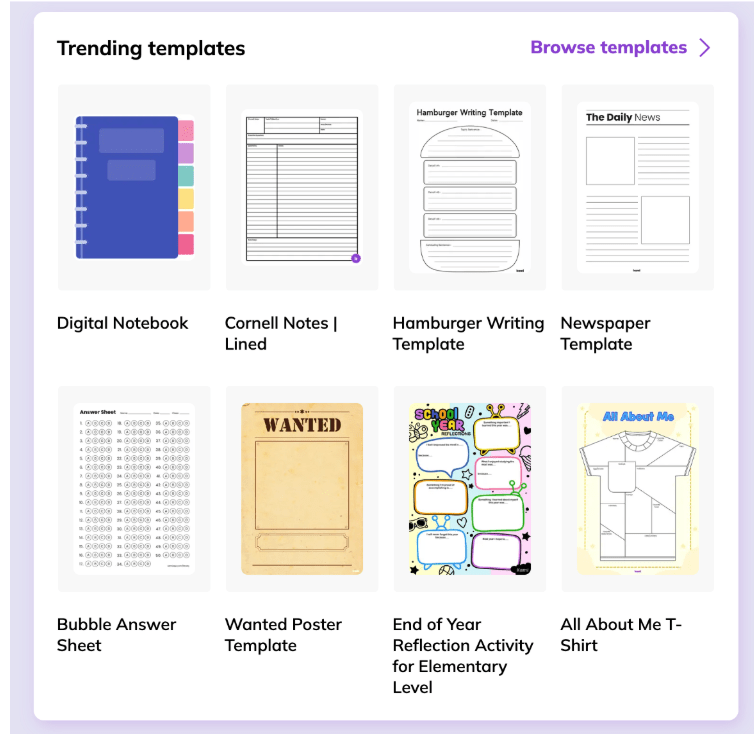
- Kami Library with 2200+ premade templates
- General Templates
- Cornell Notes Lined
- Digital notebook with linked tabs
- Blank comic strip
- Classroom map template
- Social Studies Templates
- Timeline
- Exam revision
- Country Facts
- Choice board – Women’s History Month
- Interactive world map
- Math Templates
- Graph paper grid
- One-Step Equation Mazes
- Science Templates
- Blank periodic table
- Blank Bar graph templates
- ELA Templates
- Hamburger writing
- Handwriting templates
- Plot Organizers
- Story Sequencing
- General Templates
The templates listed above are a small selection and can be used for a wide range of subjects!
What about Elevating Instruction?
- Teacher can control the features that students have access to
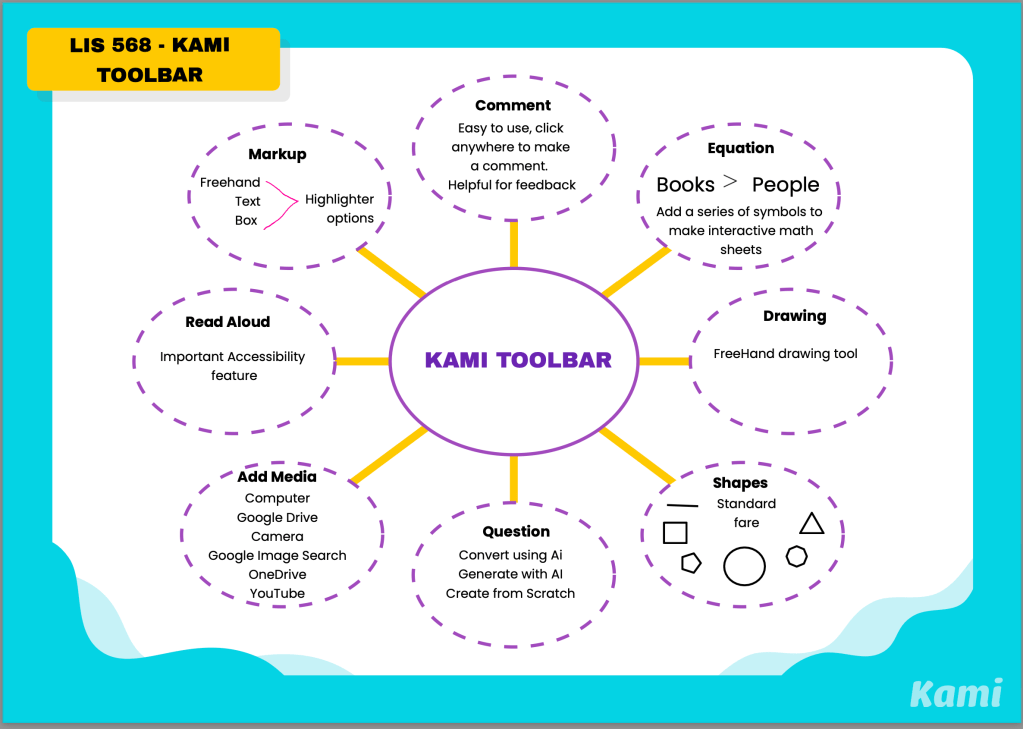
- Take a look at what some of the tools can do in the image below
- I chose a premade template and summarized each of the tools
- For an official kami video describing each tool click here.
- Teacher can choose to add links for mobile access ease
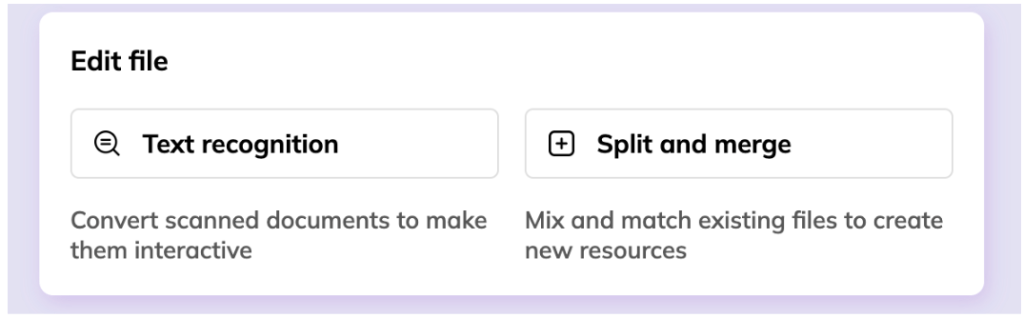
- The Edit File feature can be a major time saver for educators
- Text Recognition – Kami can create editable files by detecting text from scanned documents and converting it
- Split & Merge – mix and match existing files to create new resources
- Can view assignments while students are working
- Kami grader can scroll through multiple student assignments to provide feedback
One of the most important factors I consider when integrating new technology is its ease of use. Kami Academy provides several training videos. They are succinct and divided into manageable subtopics.
So what are you waiting for? Try Kami out today!
 unapologeticallyb00kish
Leave a comment